
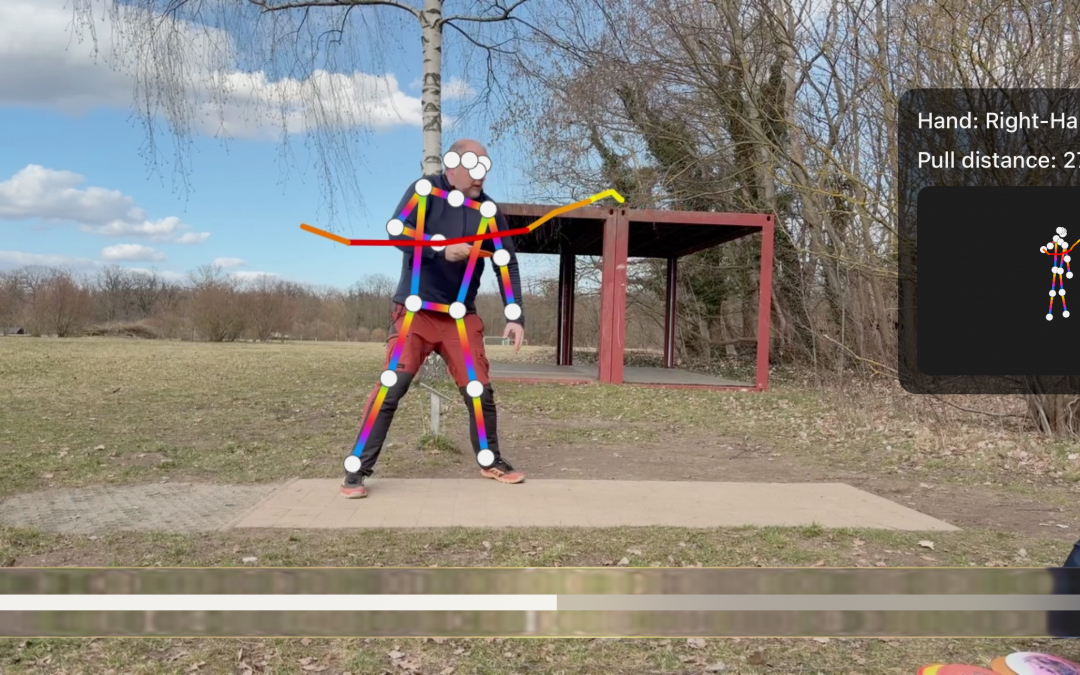
If you’ve been looking for better ways to analyze your throwing mechanics, the latest replay update has some exciting additions. You can now visualize your wrist path and see exactly how your arm speed changes throughout a throw, all through intuitive color coding. On top of that, a new thumbnail view makes it faster than ever to scan through your sessions and pick out the throws that went right — and the ones that didn’t.
Wrist Path and Arm Speed Colors in Replay
The updated replay feature now draws a visible line tracing the path of your wrist throughout the entire throwing motion. This isn’t just a static line, though. It’s color-coded to represent how fast your arm is moving at each point during the throw, giving you an immediate visual breakdown of your acceleration pattern from start to finish.
The color system is straightforward and easy to read. Yellow sections of the wrist path indicate slower arm speed, while red sections represent faster movement. As you watch your replay, you can instantly see where your arm picks up speed and where it might be lagging. This makes it much simpler to understand your throwing dynamics without needing to dig into raw numbers or complicated graphs.
Ideally, you want to see the highest acceleration — the deepest red — happening right as you approach the release point. That’s where maximum energy transfer occurs, and it’s what separates a clean, powerful throw from one that leaks speed too early or too late. If you notice the red showing up well before release, or if the colors stay mostly yellow throughout, that’s a clear signal to work on your timing and acceleration pattern. It’s a small visual change that can lead to big mechanical insights.
Thumbnail View Helps Spot Good and Bad Throws
Alongside the wrist path visualization, there’s a new thumbnail view that gives you a compact snapshot of each throw. Each thumbnail shows your body pose at a key moment along with the pull-through path, so you get a quick visual summary without having to open every single replay individually. It’s a small addition that saves a lot of time.
This overview format is especially useful when you’ve logged a bunch of throws in a session and want to quickly sort through them. Instead of clicking into each replay one by one, you can scan the thumbnails and immediately spot patterns. A throw with a smooth, consistent pull-through path looks noticeably different from one where the wrist path is erratic or off-line, and those differences jump out at you in the thumbnail grid.
Being able to visually compare good throws against bad ones side by side is a game changer for self-coaching. You start to recognize what your best throws look like at a glance — the body position, the shape of the path, the color distribution — and you can use that as a reference point. Over time, this kind of quick pattern recognition helps you build a stronger mental model of what you’re aiming for mechanically, which translates directly into more consistent performance.
These new replay features bring a level of visual feedback that makes analyzing your throws both faster and more intuitive. The wrist path with arm speed colors gives you immediate insight into your acceleration timing, while the thumbnail view lets you efficiently review entire sessions at a glance. Together, they turn your replay data into something you can actually act on — helping you identify what works, fix what doesn’t, and throw better over time.